Select your name or account icon at the bottom of Studio’s sidebar to open Account Settings. Find Authentication activity below your Profile information.
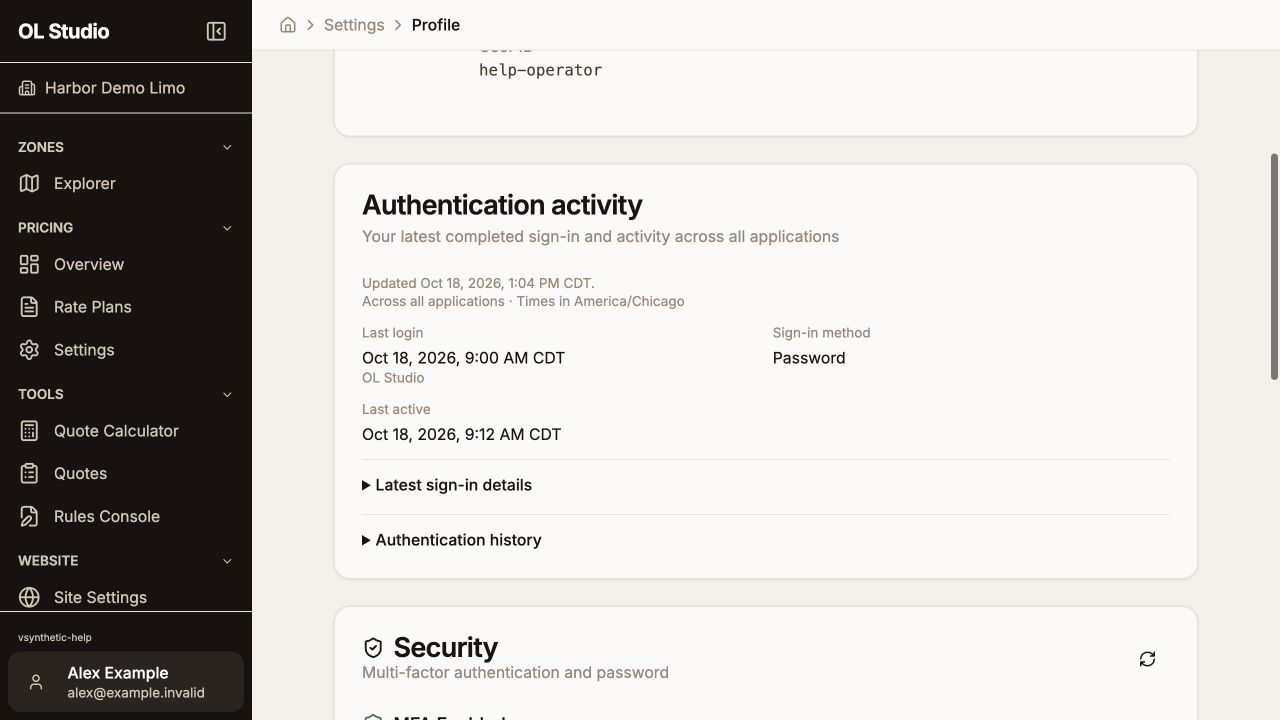
Read the summary
- Last login shows the latest recorded completed sign-in and the application used. It covers all applications, so the most recent entry may be from another OpenLimo app.
- Sign-in method shows how that sign-in was recorded. Existing session means the app used an existing sign-in session; it is not a new credential check.
- Last active is the latest recorded interaction. It is separate from login time. Refreshing the displayed data alone does not mean you performed a new sign-in or interaction.
- Updated tells you when Studio refreshed the displayed facts. Read the timezone shown above the facts when comparing times.
Expand Latest sign-in details for Credentials verified, Sign-in type, Application ID, recorded sign-in count, and verification details. The credentials time may be earlier than the latest application sign-in when an existing session was reused. Several verification details can describe the same passkey.
Review recorded sign-ins
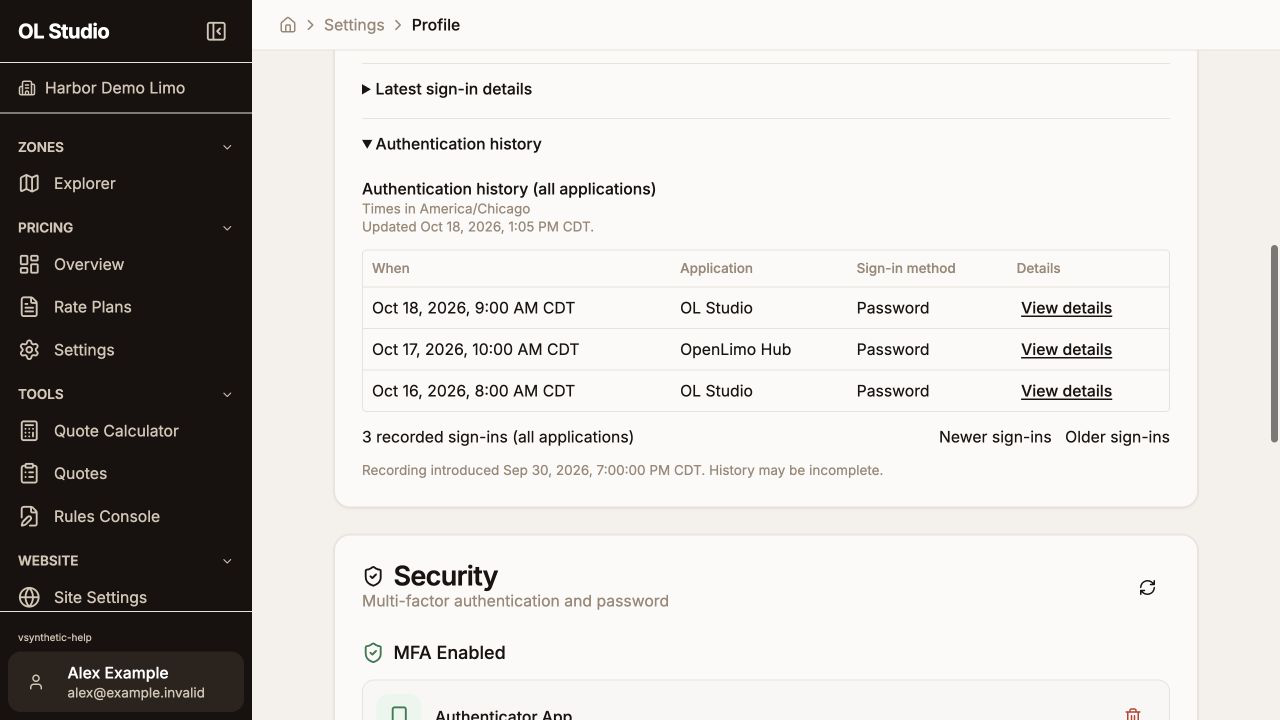
- Expand Authentication history.
- Review When, Application, and Sign-in method for the entry.
- Select View details for credential verification, sign-in type, checks, outcome, and record identifiers. Select Hide details to collapse it.
- Use Older sign-ins and Newer sign-ins when more records are available.
- Read the recording-start and completeness note below the history. The count covers recorded sign-ins within that coverage, not a guaranteed lifetime total.
Missing or stale information
Not recorded means a fact was not supplied. It does not mean zero sign-ins or no activity. No sign-in records available can appear when no records exist within the available coverage.
For Authentication data is unavailable or Sign-in history is unavailable, check your connection and reopen the page after it returns. If Studio says it could not refresh, the displayed values may be old. Contact Support if the problem continues, with the application, displayed timezone, approximate time, and error text.
This panel shows your own recorded activity. It does not list every request or provide a live list of connected devices.