Open Pricing → Rate Plans, choose the plan, and open Cancellation. A plan can own a policy list, inherit one from a parent plan, or explicitly allow free cancellation.
Every non-empty list has exactly one Default policy. It applies to bookings on that rate plan unless another policy is selected through a supported booking workflow. Adding alternatives to the list does not select them automatically by vehicle, zone, date, or service.
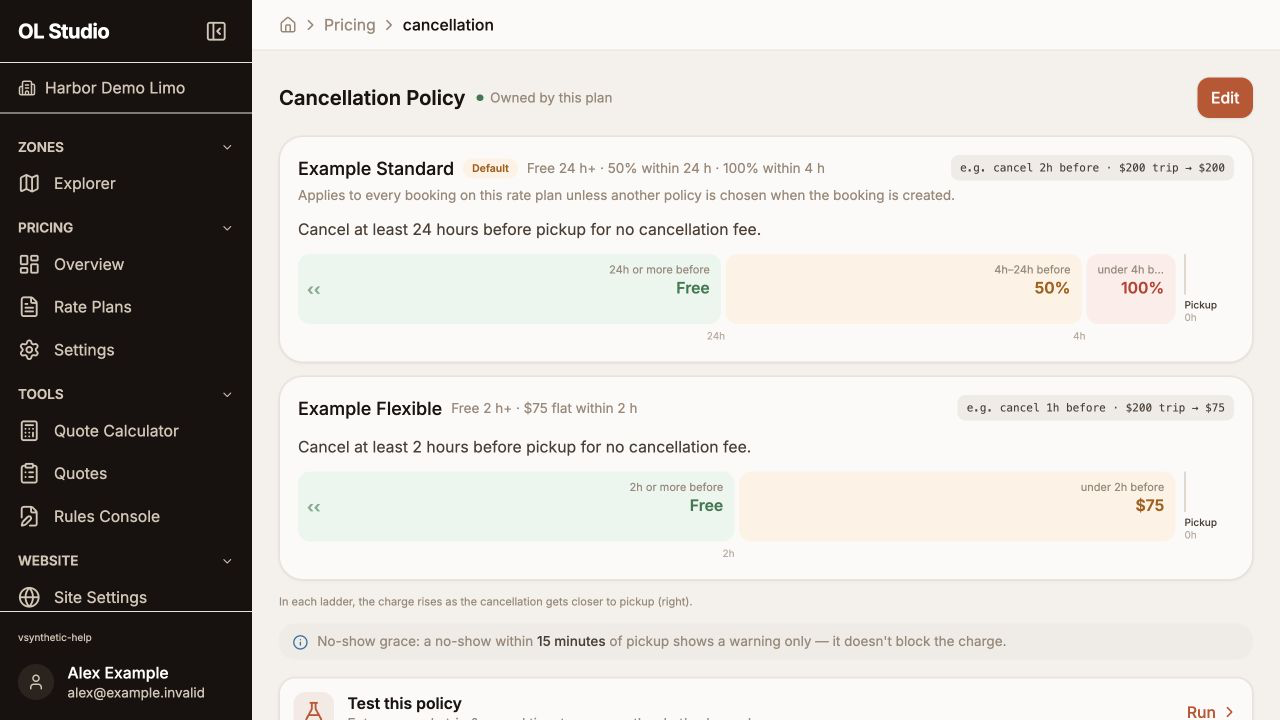
Edit the list and choose its default
- Select Edit for an owned list, Configure if none exists, or Override to create this plan’s own version of an inherited list.
- Select Add Policy, or Edit beside an existing policy.
- Enter Policy Name, Customer-facing wording, the Free Window, and the Tier Ladder. Presets provide a starting point; review every amount and time against your agreed terms.
- Select Done to return the policy to the list draft. Done does not save it to Studio.
- Select Set as default beside the intended policy. The first policy added becomes the default; deleting the default makes the first remaining policy the default.
- Review No-Show Grace Period and select the outer Save. Check the saved list and its Default badge, then run the policy tests below.
Cancel in the drawer discards that policy’s draft changes. The outer Cancel discards the list draft. If you leave with unsaved changes, review the discard confirmation before switching tabs or closing the page.
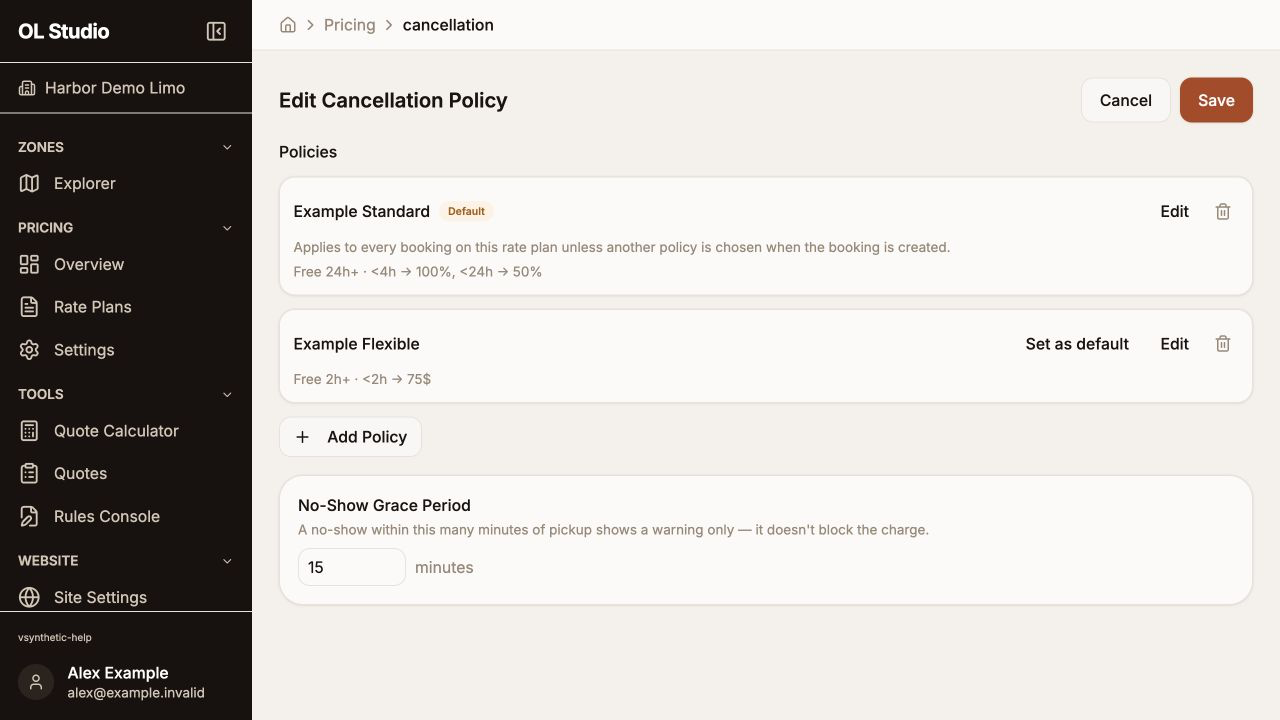
Keep wording and charges consistent
Customer-facing wording is plain text; line breaks are preserved. It describes the terms but does not calculate the fee. The free window and tier ladder control the calculation. The displayed fee summary lists every tier as pickup approaches.
For example, a policy can be free at least 24 hours before pickup, charge 50% of the base fare within 24 hours, and charge 100% within 4 hours. At exactly a tier boundary, the stricter tier has not started yet: exactly 4 hours uses the 24-hour tier; less than 4 hours uses the 4-hour tier. Test just before, at, and just after each boundary.
The largest tier window follows Free Window. To change it, change the free window. Keep shorter tier windows below it and in order. Percent charges use the base fare; flat charges use the plan currency. Some editor examples and sample-test labels show a dollar symbol, so confirm the company’s currency before entering flat amounts.
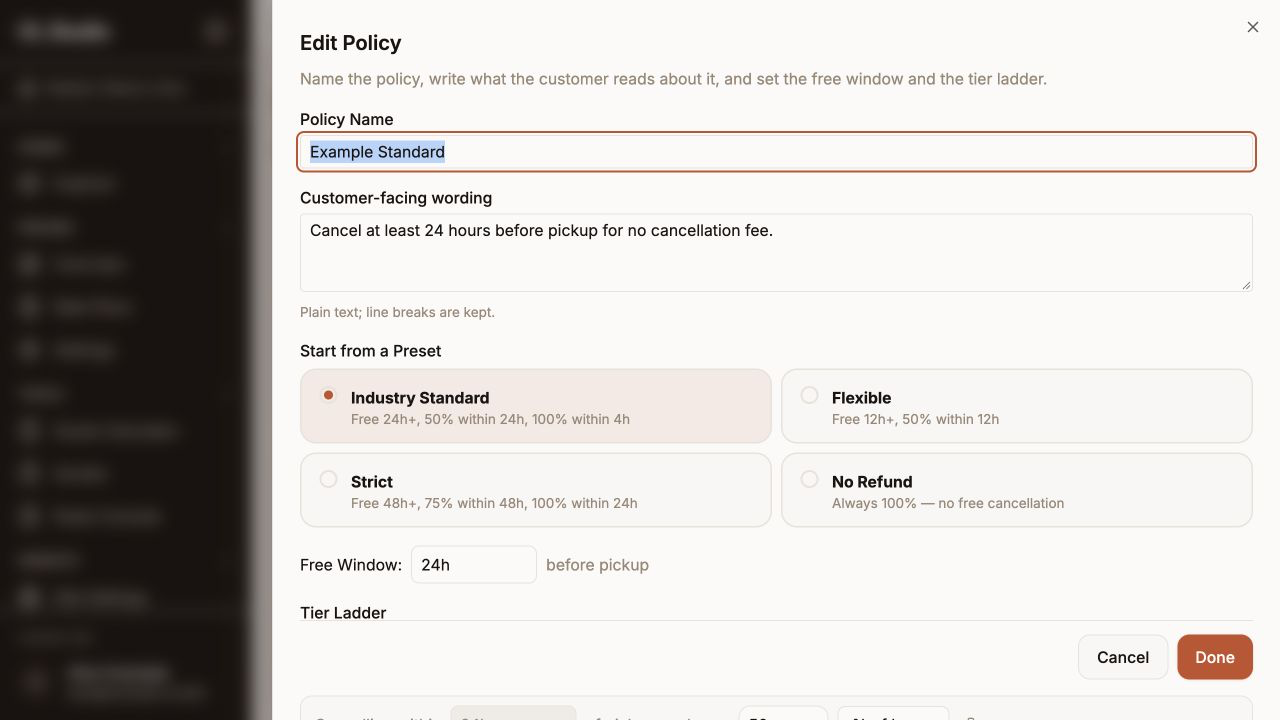
The no-show grace period produces an informational warning. It does not prevent a no-show fee from being charged.
Test the saved policy
- Save the list, then open Test this policy.
- Choose Policy. The saved default is preselected; select each alternative you need to check.
- Set Event to Cancel or No-Show and enter Base Fare.
- Choose how far before pickup cancellation happens. Under Advanced, you can enter explicit pickup and cancellation times in UTC; a filled cancellation time overrides the simple lead-time control.
- Select Run Test. Review the matched policy, lead time, tier, fee, and any grace warning.
- Repeat with the free window, each fee boundary, and both event types.
The panel tests saved terms with a sample request. It does not change a booking, charge a card, or issue a refund. Confirm the intended terms in a representative booking as well.
Inheritance, free cancellation, and existing bookings
Revert to inherited, when offered, removes this plan’s override and uses the parent’s list. An explicitly saved empty list opts this plan out of cancellation fees even if a parent has a policy. Removing the last policy and saving therefore changes the plan to free cancellation.
Quotes with a policy use a selected policy or the rate-plan default. A selected policy is a reference to the entry, not a frozen copy of its wording and charges: editing that entry can affect bookings that already use it. If the selected entry is removed or no longer belongs to the quote’s resolved plan, the current default can apply instead. Review affected bookings before changing or deleting a policy.
Older policies that previously matched by vehicle, pickup zone, date range, or service remain as plain alternatives after the October update. Those conditions no longer select a policy. Review the current Default badge and any special agreements; do not assume an old conditional policy still applies automatically.