Set up one driver’s phone and check it with Back Office before repeating these steps for the team. iPhone and Android use the same main workflow, with different permission prompts and some button labels.
Before you begin
The operator should have:
- An active driver record linked to the correct sign-in email and tenant.
- An active vehicle with the correct type, plate, and capacity.
- The intended driver permissions, including any pricing or dispatch access.
- The company’s approved app installation and sign-in instructions.
- A dispatcher available to check a test booking.
A customer Account or Individual record does not provide driver access.
1. Sign in and check the profile
- Open OpenLimo Driver and tap Sign In.
- Enter the company-provided credentials and complete any verification shown.
- Open Profile. Confirm the name and company, and review Needs Attention and required credentials.
- If the identity or company is wrong, sign out and contact the administrator.
For Driver Access Unavailable, ask the administrator to check the active driver profile and sign-in identity in the correct tenant. Use Retry after correction, or sign in again.
If the operator also drives
Tenant administrators can use Operations → Manage Business for Company, Vehicles, Drivers, Pricing, Accounts, and Passengers, even without a driver profile.
To drive, open Drivers → Add Myself; on Android, open Add Driver first. Save the details with the same sign-in email. Driving tools require an active profile. On Android, use Start Driving to recheck it when offered.
2. Allow notifications and location
Notifications announce assignments and changes. Location lets dispatch and assigned passengers follow progress.
| Phone | What to do |
|---|---|
| iPhone | Allow notifications and location while using the app. Allow Always location access when iOS offers the upgrade for background tracking. |
| Android | Allow notifications. Read Location access, tap Continue, and allow location. Follow Allow location “all the time” for background tracking. Follow the battery prompt under Keep OpenLimo Driver running on shift to maintain tracking while idle. |
If declined, review permissions in the phone’s settings for OpenLimo Driver, then return to the app. Android wording varies by phone.
Permission alone does not start work. Control availability from Today; location sharing follows online availability and pauses during breaks.
3. Choose the vehicle
- Open Today.
- If there is no assignment, iPhone shows Choose a Vehicle and Android shows Vehicle Assignment Required.
- Check the vehicle’s make/model and plate, select it, and tap Assign Selected Vehicle.
- Confirm the correct vehicle appears on Today.
For No Vehicles Available, ask dispatch to check availability and assignments. Authorized users can use Add a New Vehicle.
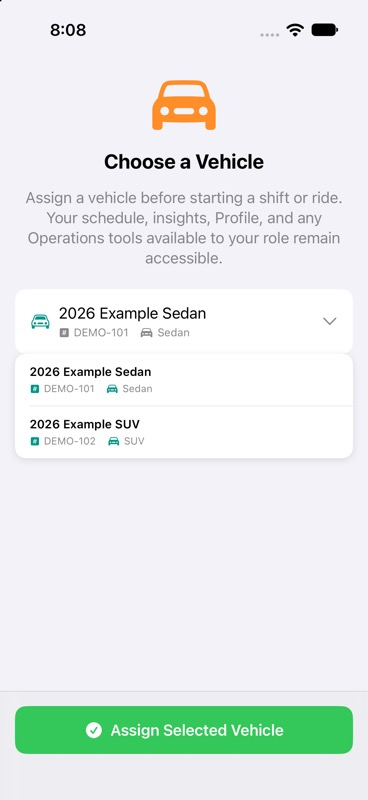
Assign a vehicle before starting a shift or ride. Trips, Insights, and Profile remain accessible without one. To switch, open the current vehicle on Today after finishing any ride in progress.
4. Become available for work
- On Today, tap Start Shift for companies using timecards, or Go Online for availability without timecards.
- Confirm and check the on-shift or online state.
- Ask dispatch to verify availability and location in Back Office.
- Use Start Break and End Break if available. Finish work with End Shift or Go Offline.
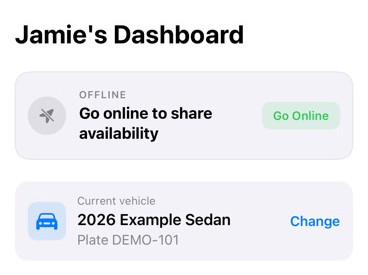
Trip actions for the final booking check
Once phone setup is complete, continue to Your first booking. Use the actions below during that final check. Agree on a test booking with the operator and check passenger details, pickup time, addresses, service, vehicle, and price in Back Office. Test bookings can trigger customer communications and payments.
- Ask dispatch to assign it to this driver and vehicle.
- Check the alert and booking details. Use Today for current work and Trips for the schedule.
- Open the ride. As each test stage occurs, take the action below and confirm its status with dispatch.
| When | Driver action in ride details | Expected status |
|---|---|---|
| The driver accepts the assignment | Accept Booking on iPhone; Accept Ride on Android | Driver Accepted |
| Leaving for the pickup | Start Ride | En Route |
| At the pickup | Arrive at Pickup | On Scene |
| The passenger is aboard | Pickup Passenger | Passenger On Board |
| The journey is finished | Complete Ride | Completed |
Actions depend on assignment, status, and permissions. Start Ride may appear nearer departure time. Read timing or location warnings before continuing.
Review any settlement step with the operator before charging. Trip completion and payment settlement are separate checks; confirm both in Back Office.
If something does not work
| Problem | Check first |
|---|---|
| Driving tools are missing | Correct tenant, active driver profile, and matching sign-in identity. |
| Vehicle unavailable | Active status, assignment, and any ride in progress. |
| Trip missing | Assigned driver, company, pickup date, Trips, and phone connection. |
| No alert | Notification permissions and settings; check the trip list directly. |
| Tracking stops with the screen locked | Background location, online/break status, and Android battery restrictions. |
| Business tools missing | The user’s role and driver permissions. |
| Action fails | Refresh and compare with Back Office before retrying. Give dispatch the booking reference and error. |
Ready to continue
Proceed when the correct driver and vehicle appear and dispatch receives availability and location. The next step checks booking delivery and trip progress in both products. Complete that check for each driver before their first live assignment.
Guides for the upcoming Driver App update
The September 19 preview has not yet been released through the App Store or Google Play. If your company has provided this preview, see the guides for bookings and follow-on trips, passengers and contact import, compliance documents and scanning, and Operations and booking review. Follow your company’s installation instructions and check which controls your version provides.