Start with your company’s details and operating locations. These give your team a consistent company identity, local time, currency, and home base.
Before you start
Complete tenant access. Have your business contact details, operating time zone, currency, and location manager details available.
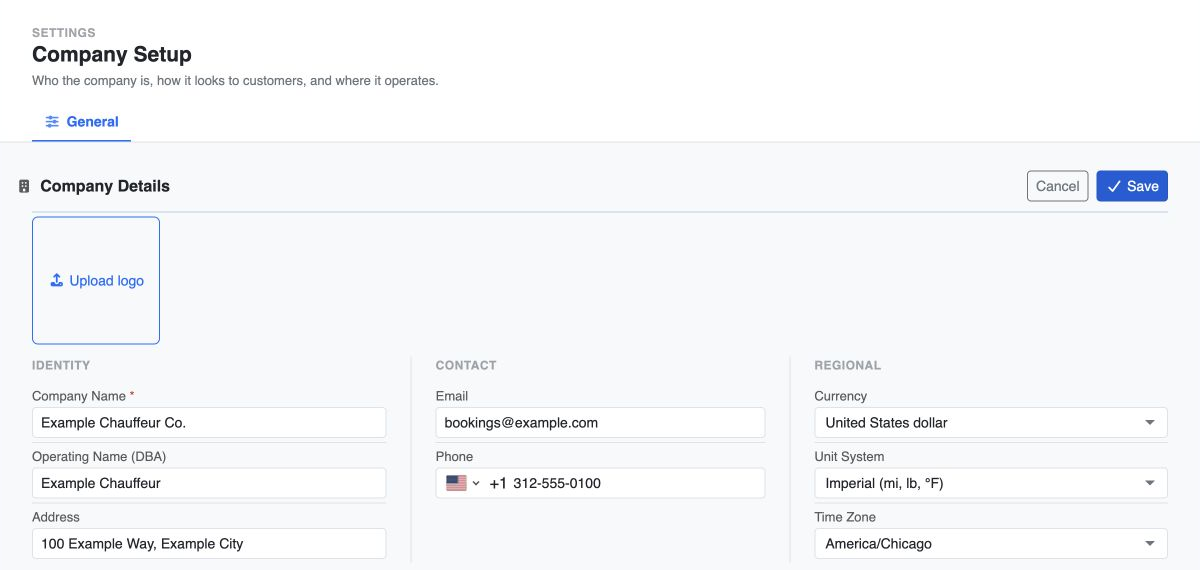
Enter company details
- Open Settings → Company Setup.
- In Company Details, select Edit.
- Enter Company Name and choose Currency, Unit System, and Time Zone. These values are required. Choose the company’s operating time zone, rather than the time zone of a person temporarily working elsewhere.
- Add the Operating Name (DBA) if different, business Address, Email, and Phone. Select the matching address result when using address search. A company logo is optional.
- Select Save. Reload the page and check the saved name and regional settings before creating bookings or pricing.
Add branding and support details
In Branding, choose Edit. Add the legal name, website, support email and phone, support page, privacy policy, terms page, and brand color that apply to your company, then save.
These fields can be completed as needed. Use working public links and contact details your customers can actually use. Your company’s terms and privacy links are separate from the Platform Terms review shown on this page.
Set up locations
A location is an office or operating base, such as “Downtown HQ.” The creation form uses the word Office.
- Scroll to Locations and inspect any existing records before adding a new one.
- Choose New Location to open Add Office.
- Complete the required Name, Short Name, Phone Number, Manager Name, Manager Phone Number, Email, and Effective Date.
- Add the address and select its matching search result. Set Active to Yes for a location that is in use, and choose Default for the main location when appropriate.
- Set a badge color if useful. Service Radius (miles) and Available for Affiliate Dispatch are optional operating choices; configure them if you use affiliate dispatch.
- Save and confirm that the location appears in the list with the expected active and default indicators.
Review company documents and readiness
The Documents section shows the company’s filed records and expiry dates. Select Manage in Compliance to add or update records; the company profile shows a summary.
Open Compliance → Overview and review the company’s requirements and Action queue. Readiness comes from published requirement packs, and a company without a baseline pack has unknown readiness. Follow the readiness guide to configure requirements and resolve missing, expired, or pending-review records before launch.
Connect the company to its services
Open Fleet → Fleet to review your operating brand, services, and vehicle types. A fleet is the brand or business grouping; a vehicle is an individual car. Follow vehicle setup to connect the fleet, service, vehicle type, and physical vehicle.
Before launch, also review Settings → Operations with your dispatcher. It contains the operating and Driver App settings that affect daily work.
You are ready when
Company details remain correct after reload, the currency and time zone match the business, and each required location has a recognizable name, current contact details, and the correct active/default setting. Published company requirements and outstanding document actions have been reviewed in Compliance.
If you get stuck
- Save is unavailable: complete the required values and correct any invalid email, phone, or website fields.
- A location cannot be added: check the tenant’s location limit with your administrator.
- Bookings show unexpected times or distances: review Time Zone and Unit System before entering more bookings.